How to Secure Your Wi-Fi

How to Secure Your Wi-Fi

Securing your Wi-Fi network is crucial for protecting your personal data, maintaining network performance, and preventing unauthorized access. With the increasing number of connected devices and potential security threats, ensuring that your Wi-Fi is secure has never been more important. This article provides a comprehensive guide on how to secure your Wi-Fi network, covering essential steps and best practices to enhance your network’s security.

Change Default Login Credentials

One of the first steps in securing your Wi-Fi network is to change the default login credentials for your router. Most routers come with preset usernames and passwords that are well-known and easily accessible to potential attackers. By changing these default credentials, you create a stronger barrier against unauthorized access. Log in to your router’s administration interface using the current credentials, navigate to the settings or management section, and update both the username and password. Choose strong, unique passwords that combine letters, numbers, and special characters to enhance security.

Enable WPA3 Encryption

Encryption is a key component of Wi-Fi security, as it protects the data transmitted over your network from being intercepted and read by unauthorized users. The most secure encryption protocol currently available is WPA3 (Wi-Fi Protected Access 3). WPA3 provides improved security over its predecessor, WPA2, by offering enhanced protection against brute-force attacks and more robust encryption standards. If your router supports WPA3, enable it in the security settings. If WPA3 is not available, ensure that your network is using WPA2 encryption, as WEP (Wired Equivalent Privacy) is outdated and vulnerable.

Create a Strong Wi-Fi Password

A strong Wi-Fi password is essential for preventing unauthorized access to your network. Avoid using easily guessable passwords such as “password123” or “123456.” Instead, create a complex password that includes a combination of uppercase and lowercase letters, numbers, and special characters. Aim for a password that is at least 12-16 characters long to ensure it is difficult for attackers to crack. Additionally, avoid using personal information, such as your name or birthdate, in your password. Regularly changing your Wi-Fi password is also a good practice to enhance security.

Disable WPS

Wi-Fi Protected Setup (WPS) is a feature that simplifies the process of connecting devices to your network by allowing users to press a button on the router or enter a PIN. While convenient, WPS can be a security vulnerability if not properly configured. Attackers can exploit WPS to gain access to your network more easily. If you do not need WPS, disable it in your router’s settings to reduce the risk of unauthorized access. Disabling WPS will require users to enter the Wi-Fi password manually, which provides a higher level of security.

Update Router Firmware Regularly

Router firmware updates are released periodically by manufacturers to address security vulnerabilities, improve performance, and add new features. Keeping your router’s firmware up to date is crucial for maintaining a secure network. Check the manufacturer’s website or the router’s administration interface for available updates and install them as soon as they are released. Regularly updating firmware helps protect against known exploits and ensures that your router is equipped with the latest security enhancements.

Secure Your Network with a Guest Network

If you have visitors who need to access your Wi-Fi, consider setting up a separate guest network. A guest network provides internet access to visitors without granting them access to your primary network and its connected devices. Most modern routers allow you to create a guest network with its own SSID (Service Set Identifier) and password. Ensure that the guest network is secured with WPA2 or WPA3 encryption and a strong password. This segregation helps protect your main network from potential security risks associated with guest devices.

Disable Remote Management

Remote management allows you to access your router’s settings from outside your home network, which can be convenient but also poses security risks. If remote management is enabled, attackers could potentially exploit it to gain access to your router’s configuration and compromise your network. Unless you specifically need remote management for administrative purposes, it is advisable to disable this feature in your router’s settings. This reduces the risk of external attacks and helps keep your network secure.

Monitor Connected Devices

Regularly monitoring the devices connected to your network can help you identify any unauthorized access or unusual activity. Most routers provide a list of connected devices in the administration interface. Review this list periodically to ensure that only recognized devices are connected. If you notice any unfamiliar devices, investigate further to determine whether they pose a security risk. Monitoring your network helps you stay informed about potential security issues and take appropriate action to address them.

Implement Network Segmentation

Network segmentation involves dividing your network into separate segments or subnets to enhance security and manage traffic more effectively. For example, you can create separate segments for your primary devices, guest devices, and IoT (Internet of Things) devices. By isolating these segments, you reduce the risk of a security breach affecting all devices on the network. If one segment is compromised, the other segments remain protected. Network segmentation can be implemented through router settings or by using additional networking equipment such as managed switches.

Conclusion

Securing your Wi-Fi network is essential for protecting your personal information, ensuring network performance, and preventing unauthorized access. By changing default login credentials, enabling WPA3 encryption, creating a strong Wi-Fi password, disabling WPS, updating router firmware, securing with a guest network, disabling remote management, monitoring connected devices, and implementing network segmentation, you can significantly enhance the security of your Wi-Fi network. Following these best practices will help safeguard your network from potential threats and ensure a safer online experience.

How to Set Up a Home Server

How to Set Up a Home Server

Setting up a home server can provide a range of benefits, from file sharing and media streaming to hosting websites and running applications. Whether you’re looking to create a centralized data hub for your household or experiment with server technologies, establishing a home server requires careful planning, hardware selection, and configuration. This article outlines the key steps involved in setting up a home server, including determining your needs, selecting hardware and software, and configuring and securing your server.

Assessing Your Needs

The first step in setting up a home server is to assess your needs and determine what you want your server to achieve. Common uses for home servers include file storage and sharing, media streaming, running a personal website or blog, and managing home automation systems. Understanding your requirements will guide your decisions on hardware, software, and network configuration. For example, if you plan to use your server for media streaming, you’ll need ample storage and sufficient processing power. Conversely, if you’re setting up a server for file sharing, basic hardware might suffice. Consider your goals and the potential growth of your server’s role in your home network.

Selecting Hardware

Once you have a clear understanding of your needs, select the appropriate hardware for your home server. You can repurpose an old computer or purchase dedicated server hardware, depending on your budget and requirements. Key hardware components include:

  • CPU: A server CPU with multiple cores will handle multiple tasks efficiently. An Intel Core i5 or AMD Ryzen 5 is suitable for most home server applications.
  • Memory (RAM): Aim for at least 8GB of RAM for basic home server tasks. For more demanding applications, such as virtual machines or media servers, consider 16GB or more.
  • Storage: Choose storage solutions based on your needs. For file sharing and media storage, a large hard drive (HDD) or solid-state drive (SSD) is essential. Consider using multiple drives in a RAID configuration for redundancy and performance.
  • Network Interface: Ensure your server has a reliable network interface card (NIC) with support for gigabit Ethernet to handle data transfer efficiently.
  • Case and Cooling: Select a case that accommodates your hardware and provides adequate cooling. Proper ventilation is crucial to prevent overheating, especially for continuously running servers.
  • Power Supply: Choose a power supply unit (PSU) that provides sufficient wattage and stability for your server components.

Choosing and Installing Software

The software you select for your home server will depend on its intended use. Popular options include:

  • Operating System: For a home server, you can choose from various operating systems. Windows Server is user-friendly and offers extensive support, while Linux distributions such as Ubuntu Server or CentOS are free and highly customizable.
  • Server Software: Depending on your needs, install relevant server software. For file sharing, consider software like Nextcloud or Plex for media streaming. For web hosting, you might install Apache or Nginx, along with a database server like MySQL or PostgreSQL.
  • Setup: Follow installation guides for your chosen OS and server software. Most operating systems offer step-by-step installation processes. Configure the software according to your needs, such as setting up user accounts, permissions, and network settings.

Configuring the Network

Configuring your network is essential to ensure your home server is accessible and functional.

  • IP Address: Assign a static IP address to your server to ensure it remains consistent and accessible on your network. You can configure this through your router’s settings or directly on the server.
  • Port Forwarding: If you want to access your server remotely or host services like a website, configure port forwarding on your router. This forwards external requests to the appropriate internal IP address and port on your server.
  • Firewall: Configure the server’s firewall to allow necessary traffic while blocking unwanted connections. Most operating systems come with built-in firewall tools that can be customized to suit your needs.

Securing Your Server

Security is crucial when setting up a home server to protect against unauthorized access and potential threats.

  • Updates: Regularly update your server’s operating system and software to patch vulnerabilities and improve security.
  • User Accounts: Create strong passwords for user accounts and use multi-factor authentication if available. Avoid using default or easily guessable credentials.
  • Backups: Implement a backup strategy to safeguard your data. Regularly back up important files and server configurations to an external drive or cloud storage.
  • Encryption: Use encryption to protect sensitive data, especially if you’re accessing your server remotely. Implement HTTPS for web services and encrypt storage drives where necessary.
  • Monitoring: Set up monitoring tools to track server performance, detect potential security issues, and ensure that your server operates smoothly.

Testing and Maintenance

After setting up your server, conduct thorough testing to ensure all services are functioning as expected. Check that file sharing, media streaming, and other applications work correctly and that remote access is properly configured. Regular maintenance is also crucial for the long-term health of your server. Monitor server performance, apply updates, and review security settings periodically to address any issues that arise.

Conclusion

Setting up a home server involves careful planning and consideration of your needs, hardware, software, network configuration, and security. By following these steps, you can create a versatile and reliable server that meets your requirements and enhances your home network. Whether you’re using your server for file sharing, media streaming, or hosting services, proper setup and ongoing maintenance will ensure a smooth and efficient experience. Building a home server offers not only practical benefits but also an opportunity to learn about server management and networking, making it a rewarding project for tech enthusiasts.

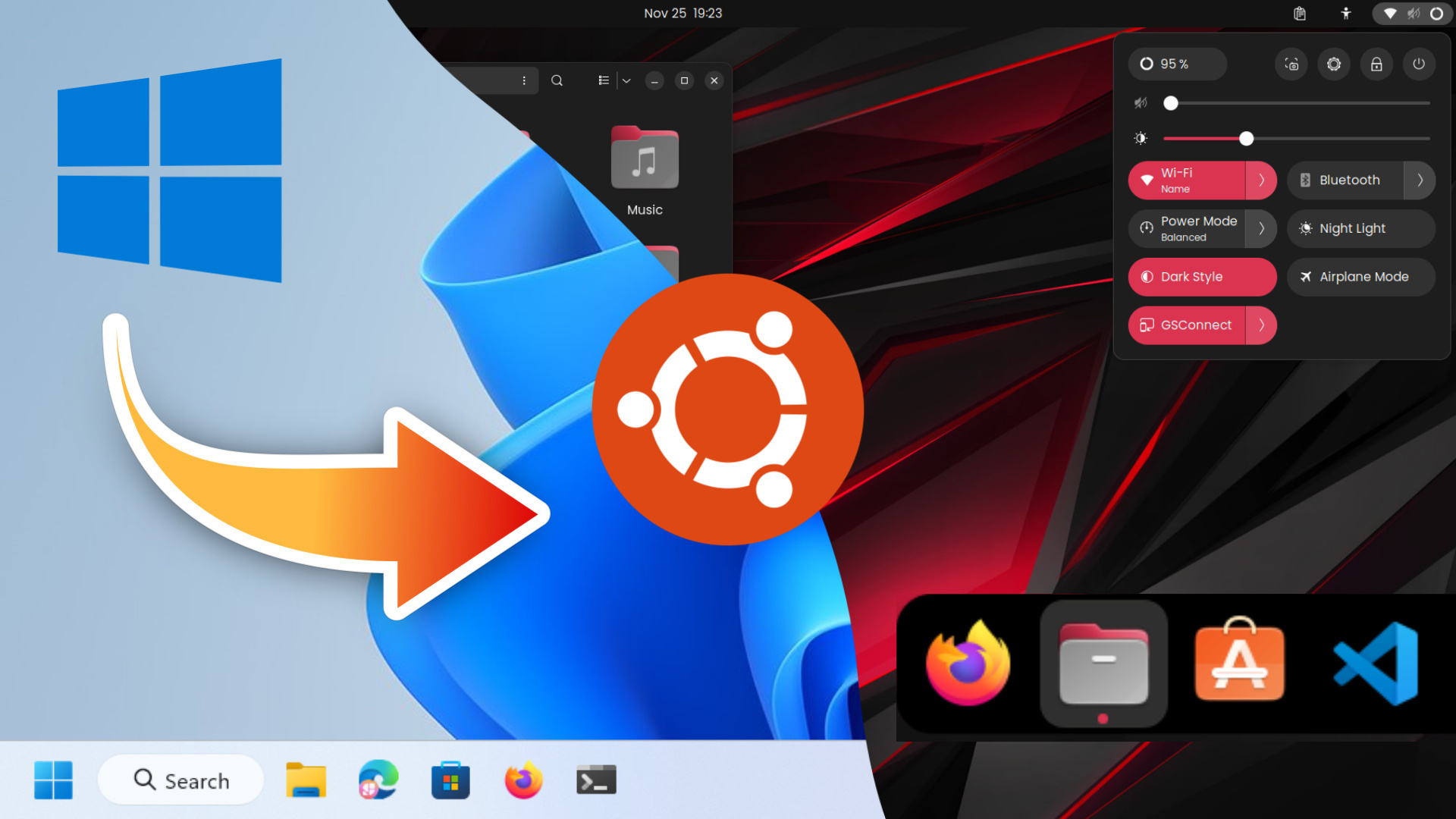
How to Install Linux

How to Install Linux: A Step-by-Step Guide

Installing Linux can be a rewarding experience, offering users a robust and versatile operating system. Whether you’re switching from another OS or installing Linux alongside an existing system, the process involves several key steps. This guide provides a comprehensive overview of how to install Linux, covering preparation, installation, and post-installation tasks.

Preparing for Installation

Preparation is crucial for a smooth Linux installation process:

  • Choose a Linux Distribution: Linux comes in various distributions (distros), each catering to different needs and preferences. Popular choices include Ubuntu, Fedora, and Debian for general use, and specialized versions like Kali Linux for security professionals. Research and select a distribution that best fits your requirements.
  • Create Installation Media: Download the ISO file of your chosen Linux distribution from its official website. To create installation media, use a tool like Rufus (for Windows) or Etcher (for macOS and Linux) to write the ISO file to a USB flash drive or DVD. Ensure the media has at least 4 GB of storage capacity.
  • Backup Important Data: Before proceeding with installation, back up any important data on your system. Although Linux installation typically does not affect other operating systems or files, it is always best to safeguard your data against unforeseen issues.

Booting from Installation Media

Once your installation media is ready, you need to boot your computer from it:

  • Access BIOS/UEFI Settings: Restart your computer and enter the BIOS/UEFI settings by pressing a specific key during startup (often F2, F12, ESC, or DEL). Locate the boot menu and set your USB drive or DVD as the primary boot device. Save the changes and exit the BIOS/UEFI settings.
  • Boot into the Linux Installer: Your computer should now boot from the installation media. You will typically see a welcome screen offering options to try or install Linux. Choose the “Install” option to begin the installation process.

Installing Linux

The installation process involves several key steps:

  • Select Installation Language and Keyboard Layout: The installer will prompt you to choose your preferred language and keyboard layout. Select the options that match your preferences and proceed to the next step.
  • Prepare the Installation Drive: Choose the drive or partition where Linux will be installed. You can either use the entire disk, which will erase all existing data, or manually partition the drive if you wish to dual-boot with another operating system. If you are new to Linux, using the entire disk is often the simplest option.
  • Configure Partitioning (if needed): If you choose manual partitioning, create the necessary partitions: typically, a root partition (/), a swap partition (optional, for virtual memory), and optionally a separate home partition (/home) for user files. Assign file systems (like ext4) and set mount points accordingly.
  • Set Up User Accounts and Passwords: Enter a username and password for your Linux system. This will be your main user account and will be used for logging in and performing administrative tasks. You may also be prompted to set a root password for system administration.

Completing the Installation

After configuring your installation settings, complete the installation process:

  • Review Installation Summary: Review the summary of your installation settings, including partition layout, user information, and installation type. Ensure everything is correct before proceeding.
  • Install Linux: Click the “Install” button to begin copying files and setting up the system. This process may take some time, depending on the speed of your hardware and installation media.
  • Restart the Computer: Once the installation is complete, you will be prompted to restart your computer. Remove the installation media and reboot your system. Linux should now boot up and present you with a login screen.

Post-Installation Tasks

After installing Linux, there are several important steps to take to ensure your system is fully operational:

  • Update the System: Open a terminal and update your system to ensure you have the latest security patches and software updates. For most distributions, you can use commands like sudo apt update && sudo apt upgrade (for Debian-based systems like Ubuntu) or sudo dnf update (for Fedora-based systems).
  • Install Additional Software: Depending on your needs, you may want to install additional software. Use the package manager for your distribution to install applications, drivers, and utilities. For example, Ubuntu users can use the Ubuntu Software Center or apt command.
  • Configure System Settings: Adjust system settings to suit your preferences, such as configuring network settings, customizing the desktop environment, and setting up printers or other peripherals.

Conclusion

Installing Linux is a straightforward process that opens up a world of possibilities for customization and control over your computing environment. By following these steps—preparing installation media, booting from it, completing the installation, and performing post-installation tasks—you can successfully install Linux and start exploring its powerful features. Whether you’re using Linux for personal projects, development, or as a primary operating system, the flexibility and open-source nature of Linux offer a rewarding experience for users of all levels.